Set defaults for vendor exchange in Xactimate desktop (X1)
 Updated
by
Jill Bowers
Updated
by
Jill Bowers
To set order defaults for each vendor you work with for vendor requests, follow the instructions below.
Before you begin, make sure the Vendor requests profile feature is active. You must activate this feature before you can configure vendor preferences or make vendor requests in Xactimate. For more information, see Profile features: Vendor Requests.
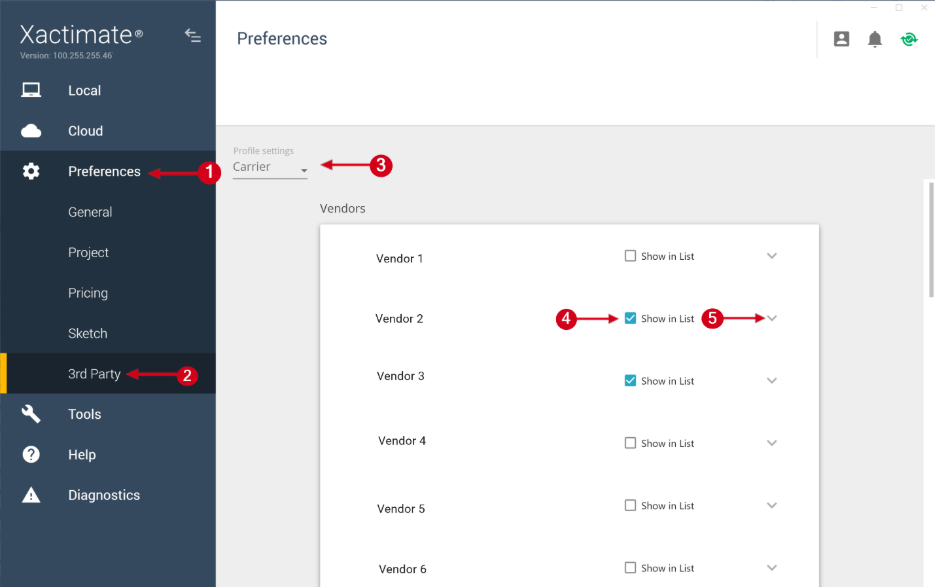
- From within Xactimate desktop (X1), select Preferences.
- Select 3rd Party.
- Choose your profile from the Profile settings dropdown menu.
- Select the Show in List checkbox next to the vendors you want to include in the Vendor Exchange tool in Xactimate.
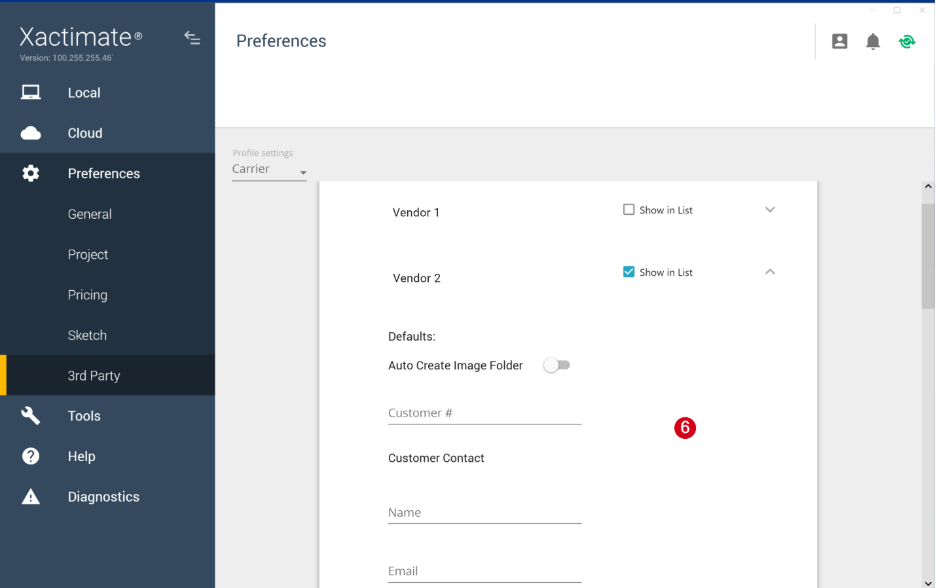
- Select the down arrow next to the desired vendor to display customizable preference fields.
- Complete the preferences for each desired vendor. Preferences vary for each vendor and may include the following.
- Loss information
- Image folder options
- Access and local codes
- Information to include in each request
- Customer contact information
- Inspection types
- Report options