Profile feature: Roof factor options
 Updated
by
Jill Bowers
Updated
by
Jill Bowers
When the Roof factor options profile feature is on, the Roof Schedules Options link and corresponding dialog are available in the Loss Info section, which is in the Claim Info page under Coverages & Loss.
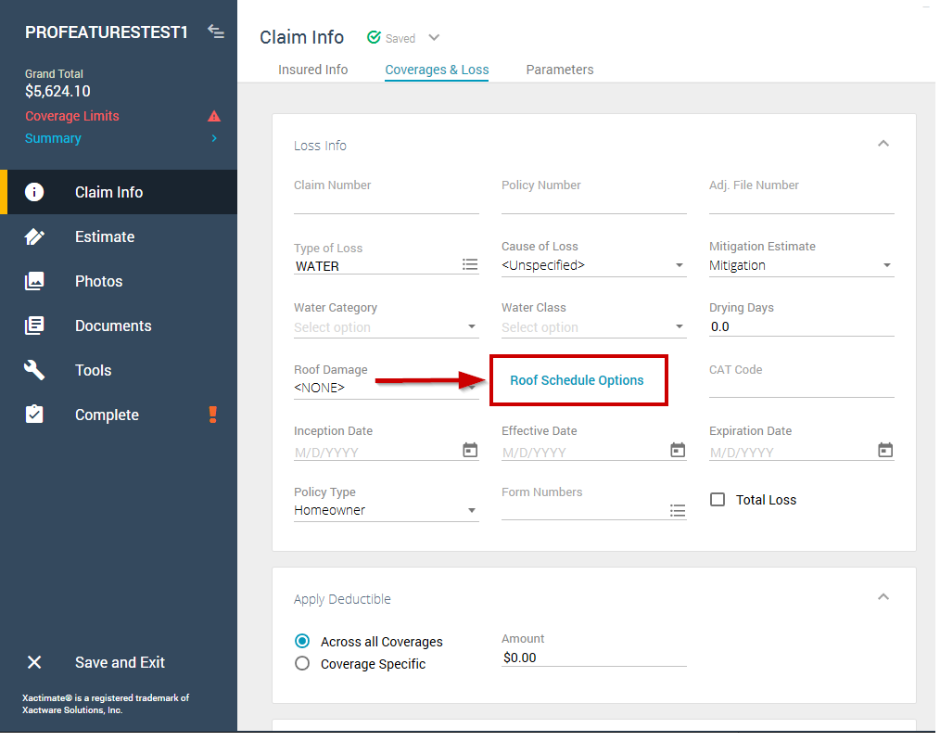
Select the Roof Schedule Options link to open a small dialog where you can fill out roof factoring information.
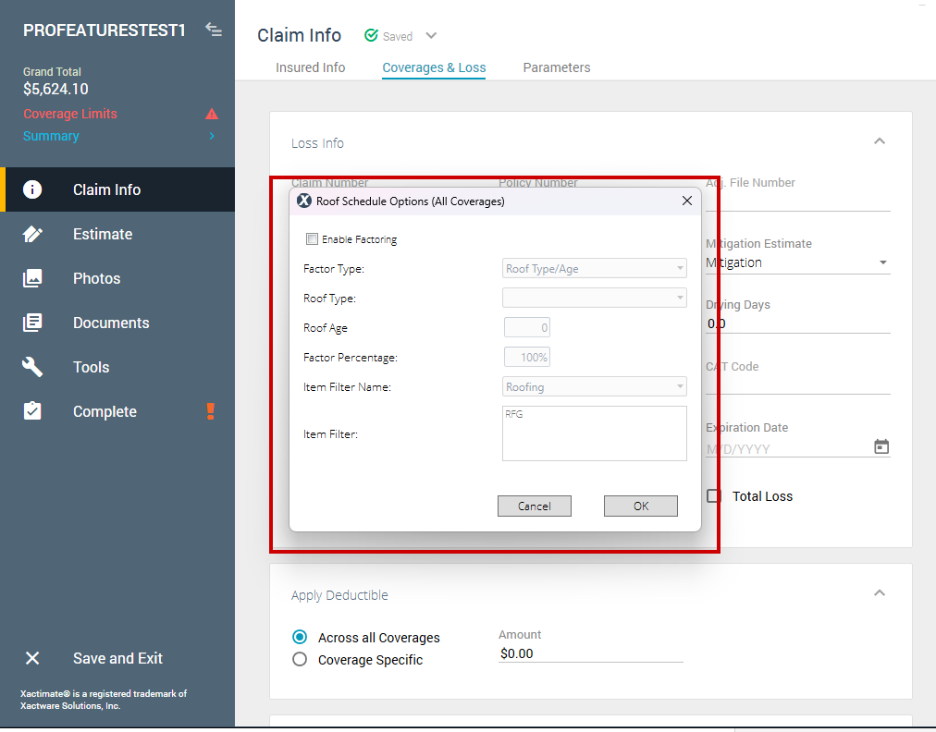
In the dialog, select the Enable Factoring checkbox to activate the other fields. You can then enter the following information:
- Factor type
- Roof type
- Roof age
- Factor percentage
- Item filter name
- Item filter
Select OK to close the dialog.
Note: When you contact your account manager to enable this profile feature, you may also need to provide a custom schedule to specify factoring amounts.
For this profile feature to work properly, the following profile features must also be active.
- Coverage factor
- Factors on items with coverage factors
- Factors on activity items
- Factors on replace items
- Factors on Dwelling or Other Structures only
- Enable Factoring checked
- Add a coverage factor checkbox column to Coverages