Send XactLink requests from Xactimate
 Updated
by
Jill Bowers
Updated
by
Jill Bowers
XactLink introduces a new non-program workflow in Xactimate that makes it easy for contractors to submit estimate packages to any carrier — even those with whom they don't have an existing program relationship.
Until now, submitting estimates to carriers outside your existing programs meant working outside your core tools. XactLink removes that barrier, letting you package and send estimate information and supporting documents to unaffiliated carriers in XactAnalysis directly from within Xactimate.
Activate XactLink in XactAdmin
Before you can send non-program requests from Xactimate, you must activate XactLink in XactAdmin.
For detailed steps on setting up XactLink, read our Configure XactLink for contractors in XactAdmin - Instances and Opt into XactLink for carriers in XactAdmin - Profiles documents.
Send a request to a carrier
To send requests to carriers via XactLink in Xactimate, follow the steps below.
- From the Projects page, select Share with Carrier on the desired project’s row in the Estimate Sharing column.
Note: You may need to scroll the projects list to the right to see the Estimate Sharing column.
Note: This option only appears for the Carrier profile or Contractor profile. To enable access to other contractor-owned profiles, contact your Verisk representative.
- Fill out the File share request form.
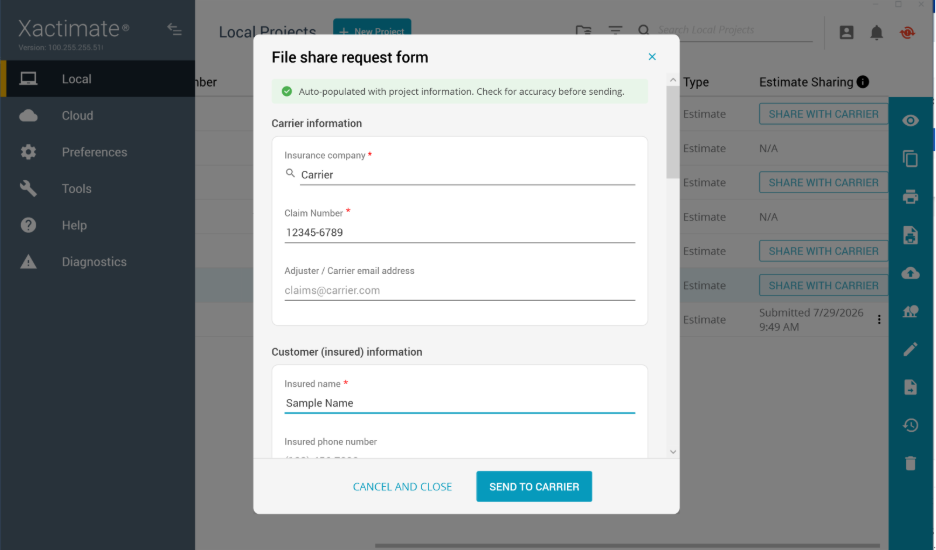
The form includes the following information:
- Carrier information. Add information about the insurance company, including the carrier's name, the claim number, and the adjuster or carrier’s email address. Contractors can obtain this information from the policyholder.
- Customer information. Enter information about the policyholder, including the insured’s name, phone number, loss address, and dates pertaining to the loss.
- Project items to share. You can share the entire estimate to carriers or select individual pieces information such as photos, documents, and reports.
- Add additional files. Add files that can help the carrier handle the request.
- Your information. Enter your information, including your name, your company’s name, and your contact information.
- Message carrier. Write any notes and additional information that may help the carrier process the project.
Note: Required fields are marked with a red asterisk in the form.
- Select Send to Carrier.
The project is sent to the carrier in XactAnalysis. To learn more about XactLink in XactAnalysis, review our XactLink for non-program estimates document.
Check request status
After you send your request to the carrier, the Share with Carrier option in the Estimate Sharing column changes to reflect the status of your request, along with the date and time of the project’s submission or acceptance. Estimate Sharing statuses include the following:
- Submitting. This status appears while your project is being submitted to XactAnalysis.
- Submitted: This status appears when your project is successfully submitted to the carrier in XactAnalysis, but has not yet been accepted by the carrier.
- Accepted: This status appears when the carrier has accepted your assignment request.
- Canceled. This appears when the contractor withdraws the request.
- Rejected. This appears when the carrier rejects the assignment and sends it back to the contractor.
Review notifications
You receive notifications in Xactimate when certain changes are made to your project. Some notifications you may receive include the following:
- New document shared
- New message
- Carrier accepted
- Carrier rejected
- Carrier canceled
- Estimate agreement added
Select the link in the notification to open the update in XactAnalysis SP.
Communicate with the carrier
You can communicate with the carrier directly in the project without relying on outside methods, such as email. You do this by adding notes.
When the carrier adds a note to the project, you receive a notification. You can open the project in XactAnalysis SP by selecting the link in the notification, or by selecting the project in the project list and selecting the XA icon. In XactAnalysis SP, select the Notes tab to read messages and respond to them.
Note: If you do not have an XactAnalysis SP account, you will be prompted to register with a new account. XactAnalysis SP is included in your Xactimate license, and registering with XactAnalysis SP does not incur any charges.
Send additional files or notes
If the carrier requires more information, you can send them files directly from inside the Xactimate project.
From Documents
- From within the open non-program project, select Documents.
- Select Reports.
- Select Documents.
- Select Import.
- Select the document you want to import.
- Select Open.
- Select the newly imported document from the list.
- Select Upload.
From Review and Submit
- From within the open non-program project, select Review and Submit.
- Complete or skip the XactXpert review.
- Complete or skip the estimate inspection.
- Select Select Files.
- Choose the files you want to send.
- Upload any additional files from your computer into Xactimate (optional).
- Add notes to send to the carrier (optional).
- Select Send to Carrier.
From the Projects list
- Select the Estimate sharing options icon on the row of the desired project.
- Select Send additional files or leave a note for the carrier.
- Choose the files you want to send.
- Upload any additional files from your computer into Xactimate (optional).
- Add notes to send to the carrier (optional).
- Select Send to Carrier.
Cancel the submission
If you need to cancel your request, follow the steps below.
- Select the Estimate sharing options icon on the row of the desired project.
- Select Withdraw share request.
- Add a reason for withdrawing the request (optional).
- Select Withdraw Request.
Note: You cannot undo this action.