Add multiple adjuster license numbers in Xactimate mobile (iOS)
 Updated
by
Jill Bowers
Updated
by
Jill Bowers
You can enter multiple adjuster license numbers in Xactimate mobile. Using adjuster license numbers helps ensure that adjusters are compliant with certain legal requirements, such as mandates that adjuster license numbers must appear in reports.
An administrator must enable adjuster license numbers in XactAdmin before users can add multiple license numbers in Xactimate mobile.
To learn how, see our Adjuster license numbers in XactAdmin document.
Add multiple adjuster licenses
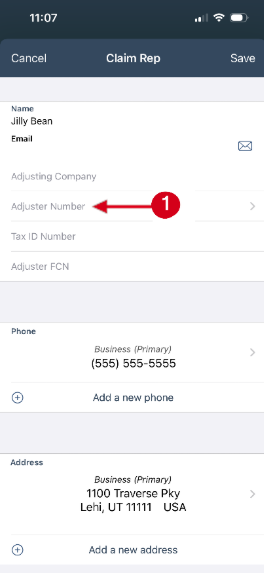
You can add multiple adjuster license numbers for claim representatives from the Required page or the Personnel page. Use either navigation path to open or add a claim representative and then complete the shared procedure in Add license numbers.
Open a claim representative from the Required page
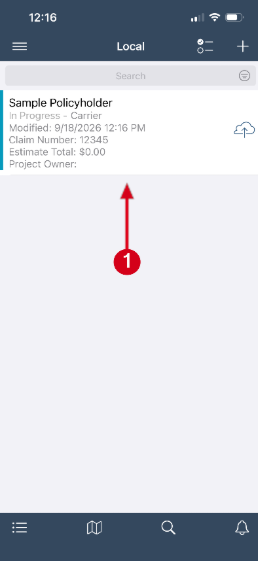
- Select the desired project from the Local list.
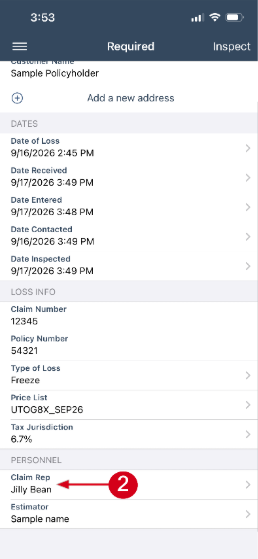
- Select Claim Rep to open a contacts list.
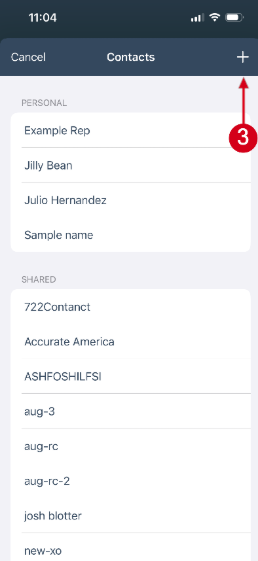
- Select the Add icon to add a new claim representative.
Note: Alternatively, swipe left on the desired existing claim representative in the Personal list, and then select Edit.
Note: Shared contacts are read-only and cannot be edited in Xactimate.
Continue to Add license numbers.
Open a claim representative from the Personnel page
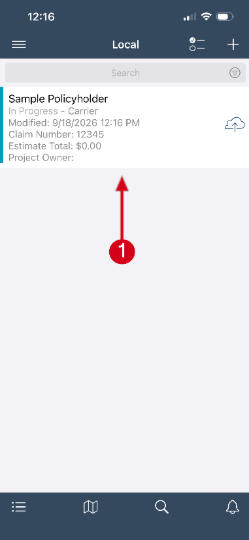
- Select the desired project from the Local list.
- Select the Menu icon.
- Select More.
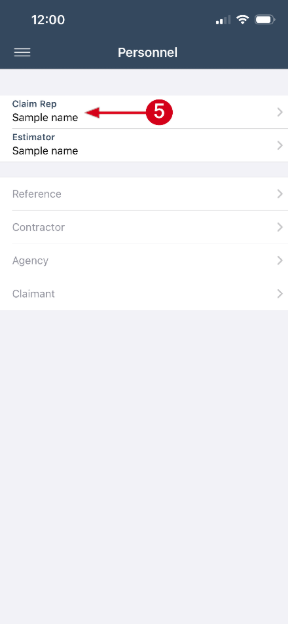
- Select Personnel.
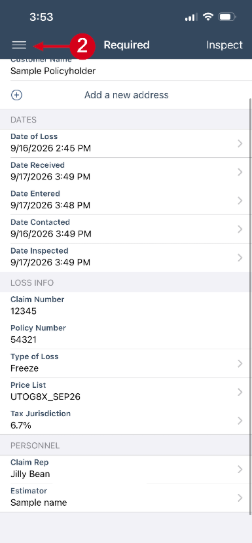
- Select Claim Rep to open a contacts list.
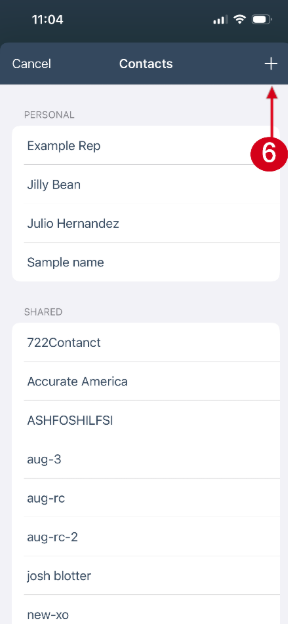
- Select the Add icon to add a new claim representative.
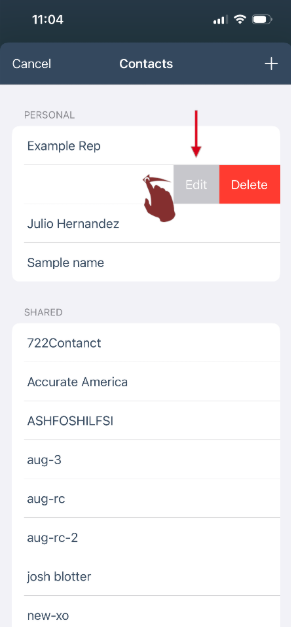
Note: Alternatively, swipe left on the desired existing claim representative in the Personal list, and then select Edit.
Note: Shared contacts are read-only and cannot be edited in Xactimate.
Continue to Add license numbers.
Add license numbers
- Select Adjuster Number.
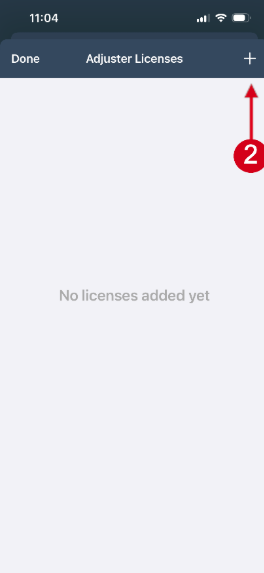
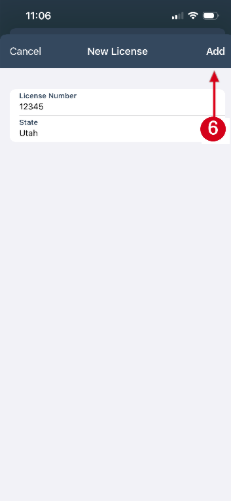
- Select the Add icon.
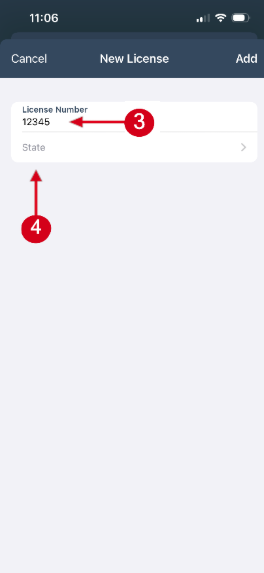
- Enter the license number.
Note: The license number field has a 100-character limit.
- Select State.
Note: Every license number must include a state.
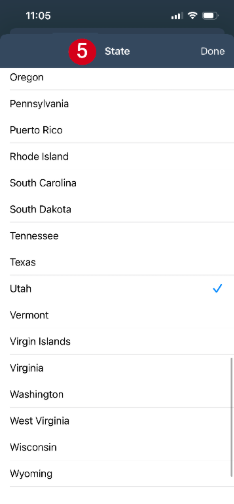
- Choose the desired state from the list.
- Select Add.
Note: You can only add one license number per state.
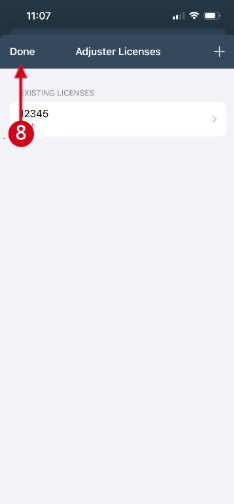
- To add another license number, repeat steps 2 through 6. Otherwise, continue to step 8.
- Select Done.
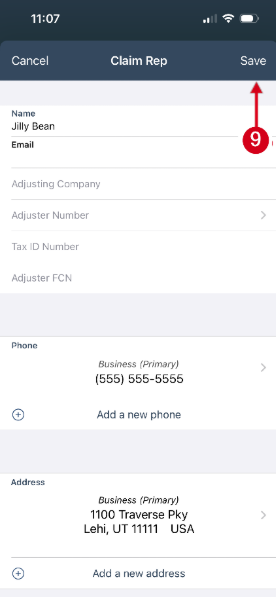
- Select Save.
- Select the desired claim representative from the list.
Assign a state to an existing license
Some licenses that were created before Xactimate supported multiple state licenses may not have a state assigned.
If a license is missing a state, a warning icon appears in the Adjuster Number field.
To add a state, follow these steps:
- Select the Adjuster Number field.
- In Existing Licenses, select the license labeled State is empty.
- Select State and choose the appropriate state.
- Select Done.
- Select Save.
How Xactimate selects a state-specific license
When you select a claim representative, Xactimate automatically uses the license number that matches the property's state. For example, if the claim representative has licenses in Florida, Alabama, and Maine, Xactimate selects the appropriate license based on the property address.
If the property address changes, Xactimate updates the license number to match the new state when a matching license is available.
If the selected claim representative does not have a license for the property's state, Xactimate displays the following message:
No license found for the selected state for the selected claim rep.
To continue, select a claim representative with a license for that state or add the required state license to the current claim representative.