About XactGen Roofing
 Updated
by
Jill Bowers
Updated
by
Jill Bowers
XactGen Roofing is an automation tool within Xactimate that generates roof estimates by leveraging data sources such as roof measurements, local building codes, loss history, weather data, and other data sources. Instead of an adjuster climbing onto a roof and manually building an estimate line-by-line, Xactimate uses those data sources to contextually determine which line items should be used, then populates the estimate with the necessary line items. Obtaining XactGen Roofing data usually only takes a few minutes, but it can take up to 24 hours if there is no existing roof measurement data for the address and volume is high.
Prerequisites and setup
You must meet the following conditions for XactGen Roofing to work.
- Use either Online Estimate Writer (OEW) or Xactimate desktop (X1) version 26.8.x or later.
- Contact your Verisk representative to add XactGen Roofing.
- The property address must be entered accurately in the Claim Info tab in Xactimate.
How to use XactGen Roofing
Start the XactGen request
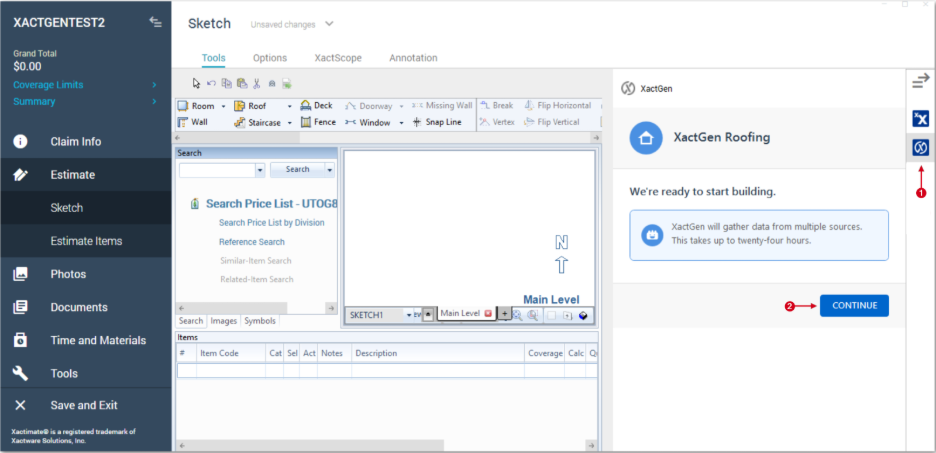
- Within an open project, select the XactGen icon in the side pane.
- Select Continue.
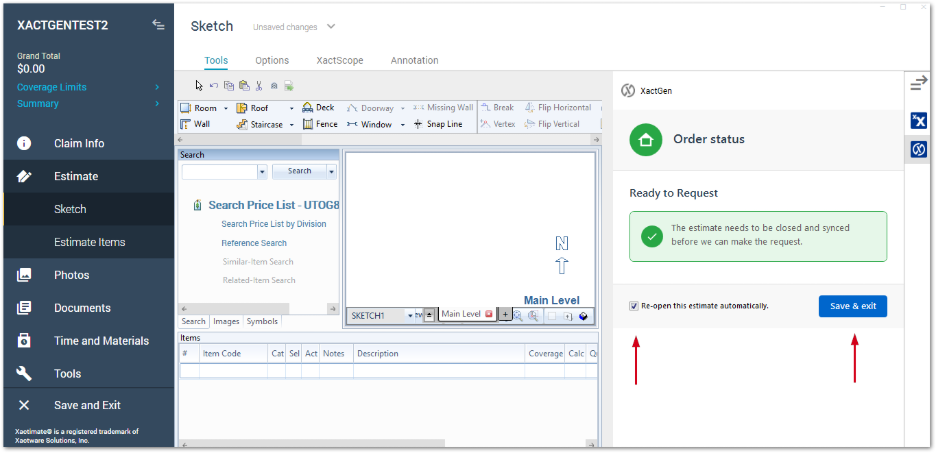
Note: If you are in Xactimate desktop (X1) or the Online Estimate Writer (OEW) and you need to order XactGen Roof Measurements, you must close and sync your project before your request is sent. To do this, select Save & exit. This is only necessary if you need to order XactGen Roof Measurements.
Note: If you want the estimate to reopen automatically after it syncs, select the Re-open this estimate automatically checkbox. If you do not want the estimate to open automatically, you can wait to receive a notification about roofing data in the Notifications icon on the Projects page.
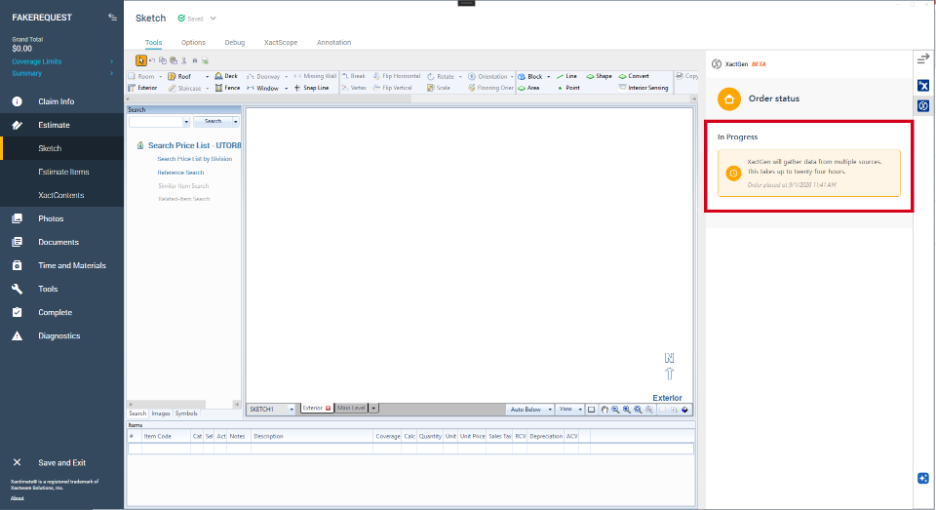
When a request sends successfully and is in progress, the following screen appears.
Review XactGen Roofing results
If you provide your own roof measurements, XactGen generates line items within a few minutes. If you order roof measurements, you receive an alert in the Notification icon on the Projects page when the data is ready.
- If the project is open: Select Save & Exit. When the project finishes syncing, you can review the XactGen results by re-opening the project and selecting the XactGen tab.
- If the project is closed: Open the project, select the XactGen tab, and review the results.
Interact with XactGen Roofing data
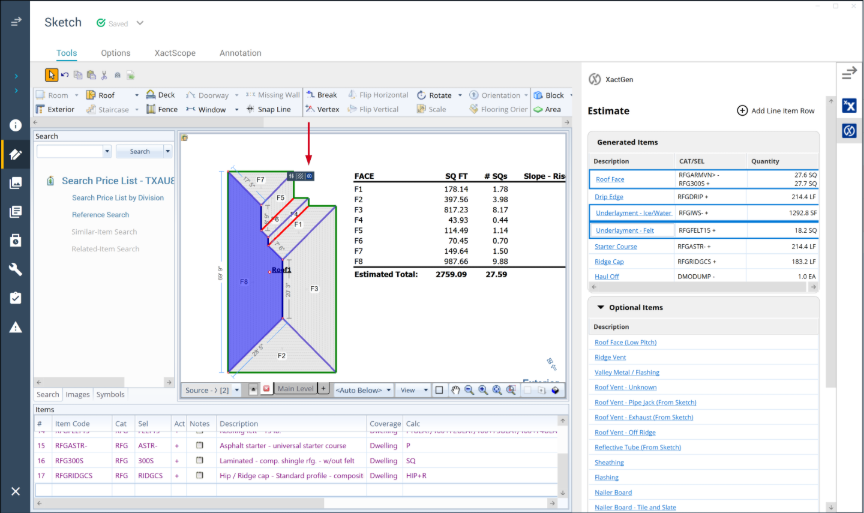
After XactGen Roofing adds the roofing data to the estimate, you can review the generated line items from the XactGen Roofing pane and from the Sketch workspace. These tools help you see where each item applies and help you adjust items as needed before finalizing the estimate. XactGen Roofing is designed to add a complete list of roof estimate line items, but users should still review the results and make changes when needed.
Generated Items
The Generated Items table lists the line items that XactGen Roofing added to the estimate, including the description, Cat/Sel, and quantity.
- Description: Identifies the item XactGen Roofing added to the estimate. Use the description to confirm that the item matches the roof work being estimated.
- Cat/Sel: Shows the category and selector for the generated line item. Use Cat/Sel to confirm that XactGen Roofing selected the correct Xactimate line item for the described work.
- Quantity: Shows the calculated quantity for the generated line item. Quantities are calculated from the available roof data, including measurements and roof-related details used by XactGen Roofing. Review the quantity to confirm that it aligns with the roof data and the area where the item applies.
Review all generated items before finalizing the estimate. If a description, Cat/Sel, or quantity does not look correct, adjust the estimate manually.
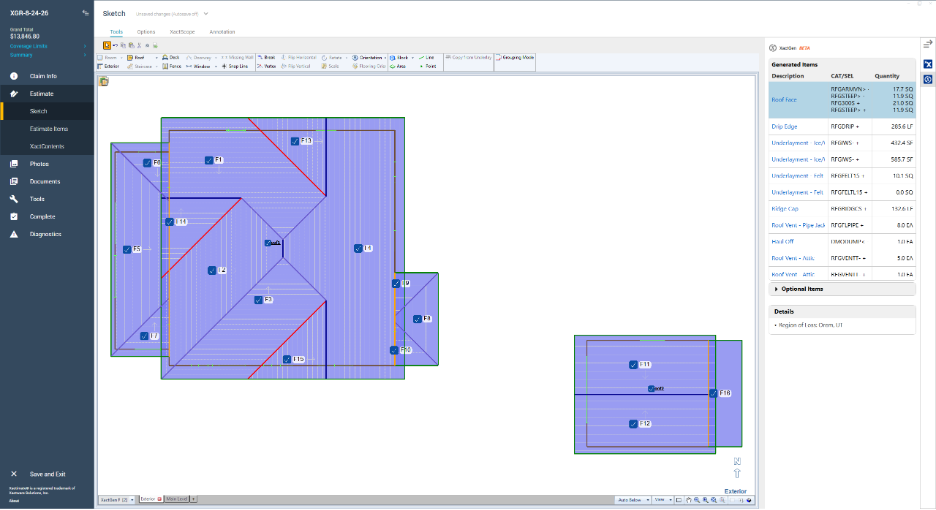
Select a row in the table to highlight the roof area where that line item applies. The highlight appears in both the 2D and 3D Sketch views, so you can confirm the item is associated with the correct part of the roof before making changes or continuing your review.
Roof line items
You can also review generated items directly from the roof sketch. Select a roof or roof face to show the line items associated with that selection in the table. You can also select other objects.
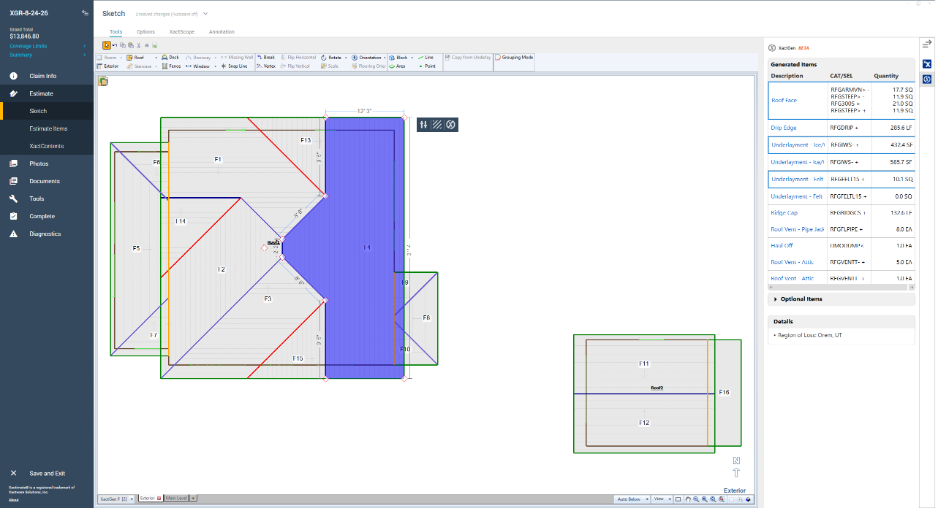
Use this interaction to compare the selected roof face with the generated line items and confirm that XactGen Roofing applied the correct items for that part of the roof. If something looks unusual, such as a missing item, incorrect quantity, or misidentified material, review and adjust the estimate manually.
Optional Items
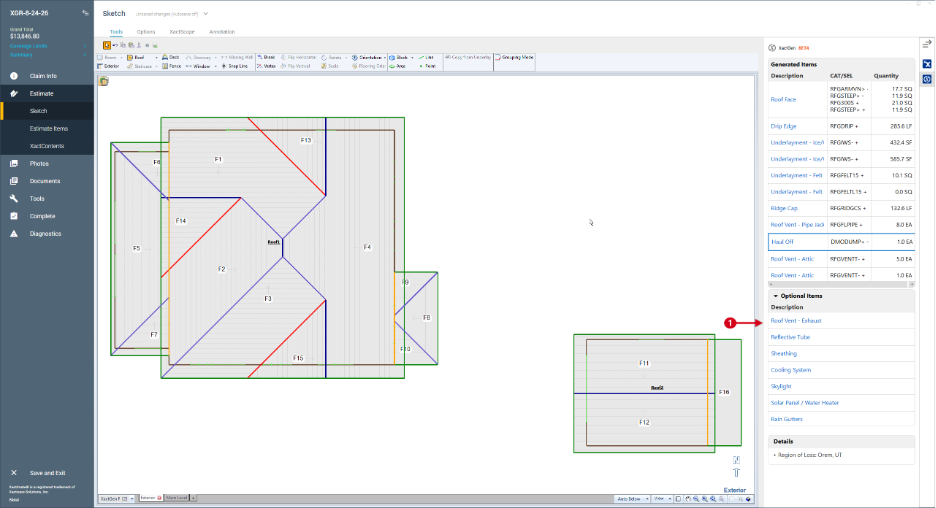
Items that are not automatically added to the roof can be found in the Optional Items section. These items can be added to the estimate quickly by following the instructions below.
- Select the blue text for the optional item you want to add.
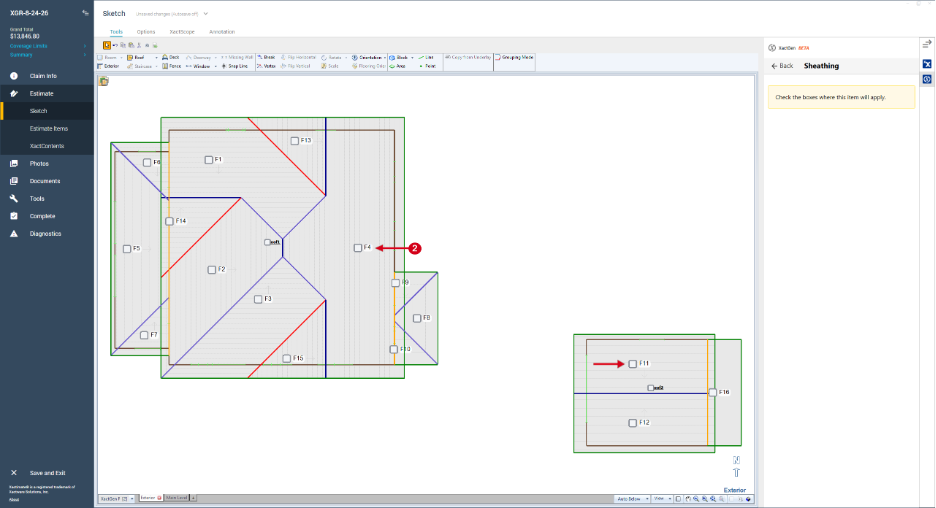
- Select the checkboxes where you want to add the item.
- Enter information for the line item. Needed information varies based on the line item.
- Select the Back button.
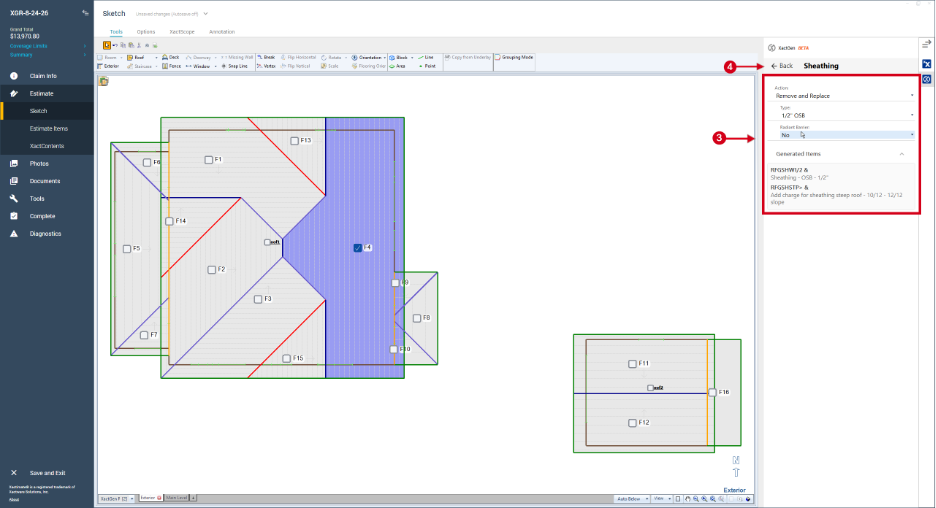
- Repeat steps 1-4 for every additional optional item.
XactGen icon
When a roof or roof face is selected in Sketch, an XactGen icon appears inside the Sketch pane. Select this icon to change or add line items for the selected roof face. This icon is separate from the XactGen icon in the side pane, which is used to open XactGen Roofing and access the generated data. Use the icon inside Sketch when you want to adjust the line items tied to a specific roof or roof face.