About claim reports
 Updated
by
Heather Jones
Updated
by
Heather Jones
Projects in most profiles have claim reports, which users can access for various documentation. The specific reports available depend on which profile the project uses. You cannot change an existing project’s profile, but you can create a duplicate project under a different profile.
To access claim reports:
- From within the project, navigate to Documents > Reports.
- Select Claim Reports.
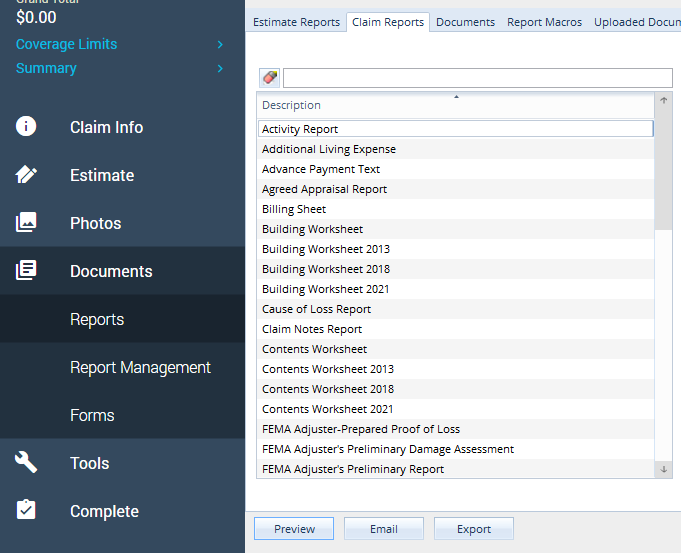
Activity Report
The Activity Report shows all the activities that the user has recorded for a claim. It shows the type of activity, dates due and completed, time spent, and expense information. Activity notes can be saved and re-used on multiple claims. For more information about the Activity Report, see Report Management: Claim Reports - Activity Report in the eService Center.
Additional Living Expenses
The Additional Living Expenses report includes the extra costs incurred by the insured while living offsite while the residence is repaired. These costs are not part of the estimate, but they are part of the claim. Most homeowner policies include a coverage called Loss of Use, usually listed as Coverage D in their policy documents. This coverage helps pay for additional living expenses incurred because of the loss.
Since the costs are not part of the estimate, they are not added in Estimate Items, and there are no estimate items for the types of costs typically incurred with Loss of Use. Costs can be entered directly into the Additional Living Expenses report in Report Management.
See Additional Living Expenses in the eService Center for more information on this report.
Advance Payment Text
The Advance Payment Text details the amount of an advance payment requested and states specific details about liability and how the advance payment relates to the insured’s policy.
This report is an alternate version of the FEMA Advance Payment Request – Building and Contents, which is a Report Management report.
The report includes information from the following locations in the project:
- Claim Info > Insured Info
- Claim Info > Coverages & Loss
- Documents > Report Management > Advance Payment Request
Notes about adding specific information to this report:
- Company header: You can include a company header at the top of this report. For more information, see Add or edit a company header in X1.
- DATE SIGNED: Xactimate automatically populates the DATE SIGNED line with the date and time the user selected the Sign button in the Reports window (see INSURED).
- INSURED: To include a signature for the insured, select the report from the list and then the Sign button that then appears between the Preview and Email buttons. Selecting this button allows you to enter the Insured’s signature. You can then generate the report with the signature included.
- WITNESS: The report uses the signature you have stored under Preferences > General > User signature. If you do not have a signature saved, the field remains blank.
- Adjuster FCN#: For information on adding the Adjuster FCN, see FEMA Flood specific adjuster information in the eScervice Center.
Agreed Appraisal Report
The Agreed Appraisal Report is also available in Report Management and is the same regardless of which location you use; however, you can only fill out the information within Report Management. This includes the report number, which photographs to include, the cause of loss, appraisal information, additional comments, and more.
Billing Sheet
The Billing Sheet is also available in Report Management and is the same regardless of which location you use; however, you can only fill out the information within Report Management. This includes services, expenses, and an explanation of charges, as well as data for the claim.
Cause of Loss Report
The Cause of Loss Report is also available in Report Management and is the same regardless of which location you use; however, you can only fill out the information within Report Management. This report includes information on the cause of the loss, limiting statutes, and investigations.
Claim Notes Report
The Claim Notes Report includes information on the insured, policy number, important dates, and the claim representative. The project notes are detailed in full, taking up multiple pages, if needed.
Also note that you can add the Adj. File No. via Claim Info > Coverages & Loss > Loss Info > Adj. File Number and the Adj. No via Claim Info > Insured Info > Personnel > Claim Rep (by adding the Adjuster # to the claim representative’s data).
FEMA Adjuster-Prepared Proof of Loss
The FEMA Adjuster-Prepared Proof of Loss is also available in Report Management for certain project types (not estimates) and is the same regardless of which location you use; however, you can only fill out the information within Report Management.
FEMA Adjuster’s Preliminary Damage Assessment
The FEMA Adjuster’s Preliminary Damage Assessment is also available in Report Management and is the same regardless of which location you use; however, you can only fill out the information within Report Management.
Adjusters use this form to list potential substantially damaged structures in preparation for possible ICC claims.
For detailed information on this report, see Preliminary Damage Assessment.
FEMA Adjuster’s Preliminary Report
The FEMA Adjuster’s Preliminary Report is also available in Report Management and is the same regardless of which location you use; however, you can only fill out the information within Report Management.
For detailed information on this report, see FEMA Preliminary Report.
The Preliminary Report 2013 and the Preliminary Report 2018 are alternate versions of this report.
The report includes information from the following locations in the project:
- Claim Info > Insured Info and Coverages & Loss
- Documents > Report Management > Flood Form Administration
- Documents > Report Management > Preliminary Report
- Documents > Forms > FEMA Adjuster’s Preliminary Report
- Documents > Forms > Preliminary Report
You can add the NFIP header (the National Flood Insurance Program header generated by Xactimate) to the Report Management version by navigating to Documents > Report Management > FEMA Adjuster’s Preliminary Report and selecting the Include NFIP Header checkbox at the bottom of the page.
Notes about adding specific information to this report:
- Most fields are populated from Documents > Forms > FEMA Adjuster’s Preliminary Report.
- The fields under Policyholder information and Insurer information are populated based on Claim Info > Insured Info; but the adjuster file number comes from Claim Info > Coverages & Loss > Loss Info > Adj. File Number.
- Adjuster’s signature: The report uses the signature you have stored under Preferences > General > User signature. However, if the Preliminary Report Form is attached to the project, the adjuster’s signature comes from that form. If you do not have a signature saved, the field remains blank.
- FCN: The FCN is populated from the information stored for the claim rep selected in Claim info > Personnel.
FEMA Advance Payment Request – Building and Contents
The FEMA Advance Payment Request – Building and Contents is also available in Report Management and is the same regardless of which location you use; however, you can only fill out the information within Report Management. It includes the information necessary to request and advance payment.
FEMA Manufactured (Mobile) Home/Travel Trailer Worksheet
The FEMA Manufactured (Mobile) Home/Travel Trailer Worksheet is also available in Report Management and is the same regardless of which location you use; however, you can only fill out the information within Report Management. It includes the additional information necessary for claims with mobile homes or travel trailers.
Final Report
The Final Report is also available in Report Management and is the same regardless of which location you use; however, you can only fill out the information within Report Management. It includes information on the property, the claim, certifications, and more.
General Loss Report
The General Loss Report is also available in Report Management and is the same regardless of which location you use; however, you can only fill out the information within Report Management. It includes information on the coverage, the loss totals, recommendations, etc.
General Proof of Loss Report
The General Proof of Loss Report is also available in Report Management for non-FEMA estimates and is the same regardless of which location you use; however, you can only fill out the information within Report Management. It includes information on the policy, the adjuster, compliance, etc.
ICC Adjuster Report
The ICC Adjuster Report includes information about the claim and details about compliance with ICC (Increased Cost of Compliance).
The report includes information from the following location in the project:
- Claim Info > Insured Info and Coverages & Loss
Notes about adding specific information to this report:
- NAME OF THE INSURER: This name populates from Claim Info > Insured Info > Personnel > Reference.
- ADJUSTER FILE NO.: This populates from Claim Info > Coverages & Loss > Loss Info > Adj. File Number. It does not include the Adjuster FCN from the Claim Rep selected in the project.
- DATE OF REPORT: The show the date the report was generated.
- ADJUSTER’S SIGNATURE: This is the signature you have stored under Preferences > General > User signature. If you do not have a signature saved, the field remains blank.
- Adjuster FCN#: For information on adding the Adjuster FCN, see FEMA Flood specific adjuster information.
ICC Proof of Loss 2021
The ICC Proof of Loss 2021 gives an overview of the insurance claim, including details that are important to an increased cost of compliance claim—including occupancy information, the full cost of compliance, and the amount paid under the ICC coverage. It is also available in Report Management (Documents > Report Management > Claim Reports > Proof of Loss Report > ICC POL) and is the same regardless of which location you use; however, you can only fill out the information within Report Management.
The report includes information from the following locations in the project:
- Claim Info > Insured Info and Coverages & Loss
- Documents > Report Management > Loss Recap
- Documents > Report Management > Proof of Loss Report > Risk Information (only for Estimate projects)
- Documents > Report Management > Flood Form Administration > Building/Occupancy (only for FEMA Flood projects)
- Documents > Report Management > Proof of Loss Report > ICC POL
You can add the NFIP header (the National Flood Insurance Program header generated by Xactimate) to the Report Management version by navigating to Documents > Report Management > FEMA Adjuster’s Preliminary Report and selecting the Include NFIP Header checkbox at the bottom of the page.
Notes about adding specific information to this report:
- INTEREST: This field populates from Claim Info > Mortgagees.
- Occupancy: For FEMA Flood projects, the Occupancy field populates from Report Management > Flood Form Administration > Building/Occupancy. For Estimate Projects, the Occupancy field populates from Report Management > Proof of Loss Report > Risk Information.
- FULL AMOUNT OF ICC INSURANCE ...: This field shows the ICC coverage policy limit (Claim Info > Coverages & Loss > Coverages), if included. Estimate projects show $0.00 if the ICC Insurance policy limit is set to be shared with another coverage, but FEMA Flood projects do not allow sharing for the ICC Insurance policy limit.
Insured Correspondence
The Insured Correspondence is also available in Report Management and is the same regardless of which location you use; however, you can only fill out the information within Report Management. It includes information on the policy, the location, the type of claim, etc.
Loss Recap
The Loss Recap is also available in Report Management and is the same regardless of which location you use (It appears at the top of all the Report Management screens, regardless of which report is selected.); however, you can only fill out the information within Report Management. For information on this report, see Report Management: Claim Reports - Loss Recap.
Narrative Report
The Narrative Report is also available in Report Management and is the same regardless of which location you use; however, you can only fill out the information within Report Management.
This report details many different aspects of the claim. An adjuster can summarize the claim, detailing questions, information, and any recommendations relating to the loss. The adjuster can update and print this report at specific milestones to provide updates whenever needed. For information on this report, see Narrative Report in the eService Center.
Notice of Loss 2020
The Notice of Loss 2020 report details the initial information on the loss.
The report includes information from the following locations in the project:
- Claim Info > Insured Info and Coverages & Loss
- Documents > Report Management > Notice of Loss > Loss Info and Post-loss Information
Photo Report
The Photo Sheet shows the details of each photo added to the project as well as the insured name, claim number, and policy number. The date the report was generated is included in the page footer.
You can include a company header at the top of this report, but image logos are not included. For more information, see Add or edit a company header in X1.
Preliminary Damage Assessment 2018
The Preliminary Damage Assessment 2018 compares the repair cost, the replacement cost, and the building value for three different properties. It is also available as Preliminary Damage Assessment in Report Management and is the same regardless of which location you use; however, you can only fill out the information within Report Management.
The report includes information from the following locations in the project:
- Claim Info > Insured Info and Coverages & Loss
- Documents > Report Management > Preliminary Damage Assessment
- Documents > Report Management > Loss Recap
Notes about specific information to this report:
- You can add the NFIP header (the National Flood Insurance Program header generated by Xactimate) to the Report Management version by navigating to Documents > Report Management > Preliminary Damage Assessment and selecting the Include NFIP Header checkbox at the bottom of the page.
- The WYO COMPANY field is populated from the Reference selected in Claim Info > Personnel > Reference.
Proof of Loss – RC
The Proof of Loss – RC is also available in Report Management (Documents > Report Management > Claim Reports > Proof of Loss Report > RC POL) and is the same regardless of which location you use; however, you can only fill out the information within Report Management.
Proof of Loss ACV 2013
The Proof of Loss – ACV 2013 is a sworn statement with detailed information about the value of the loss. It is similar to other versions of the Proof of Loss report.
Statement of Loss Report
The Statement of Loss Report separates the calculations for RC and ACV amounts. It compares the total cost of the loss to the amount of the claim, providing a summary for each coverage. The Statement of Loss shows the ITV calculations when ITV is applicable to a loss.
The report includes information from the following locations in the project:
- Claim Info > Insured Info and Coverages & Loss
- Estimate > Estimate Items
- Documents > Report Management > Loss Recap
Notes about specific information to this report:
- The date shown at the top of the report is the date the report was generated.
- You can include a company header at the top of this report, but image logos are not included. For more information, see Add or edit a company header.
- The Abstract of Coverage section includes a list of coverages, policy limits, co-insurance information, and deductibles.
- The Coverage values are calculated from the total of the estimate items when Report Management > Loss Recap > Auto update from estimate is selected. If it is not checked, users must update it manually. For more information, see Statement of loss doesn’t match the final draft report. For FEMA Flood projects, this always updates from the estimate.
- The RC Detail column only appears if the Claim Info > Coverages & Loss > Coverages table has R/C or Both selected under Apply To.
- The Statement of Loss shows the ITV (Insurance-to-Value) calculations. ITV represents the amount of insurance coverage for a property based on its current replacement cost. For more information, see Coinsurance and ITV in Xactimate.
Tag Report
The Tag Report provides a blank list of pre-numbered labels with the client name and file number.
The report includes information from the following locations in the project:
- Claim Info > Insured Info and Coverage & Loss