Depreciation in Xactimate desktop
 Updated
by
Heather Jones
Updated
by
Heather Jones
Depreciation is the difference between the actual cash value (ACV) of an item and the cost to repair or replace it. Depreciation adjusts the value of physical assets based on item category, age, condition, and usage. You can modify aspects of deprecation for an individual line item, for a project, for a profile, or for an instance.
Instance
See Set depreciation defaults in Instances in Xactimate Admin for details on modifying depreciation at the instance level.
Profile
See Set depreciation defaults in Profiles in Xactimate Admin for details on modifying depreciation defaults at the profile level via Xactimate Admin.
Xactimate desktop (X1) users can modify some depreciation settings without using Xactimate Admin. Although these settings are modified within X1 or online, the changes apply to the entire profile.
- From the main X1 page, select Preferences on the left-hand side of the window.
- Select Pricing from the options under Preferences.
- In the Depreciation section, make your modifications:
- Depreciation type
- Recoverable: Often, an initial payment covers the ACV, and a second payment (the recoverable depreciation) covers the cost of full replacement. In other words, when depreciation is recoverable, insurance covers the depreciation of the item(s).
- Non-recoverable: Policies with non-recoverable depreciation do not cover the cost of full replacement of items, only the ACV of the items.
- Depreciate by
- Amt: Depreciation is a flat amount.
- %: Depreciation is a percentage of the ACV.
- Age/Condition: Depreciation is calculated based on the age of the item in years.
Project
To modify the depreciation defaults in a specific project, complete the following:
- Open a project.
- In the left navigation menu, select Claim Info.
- Select the Parameters tab.
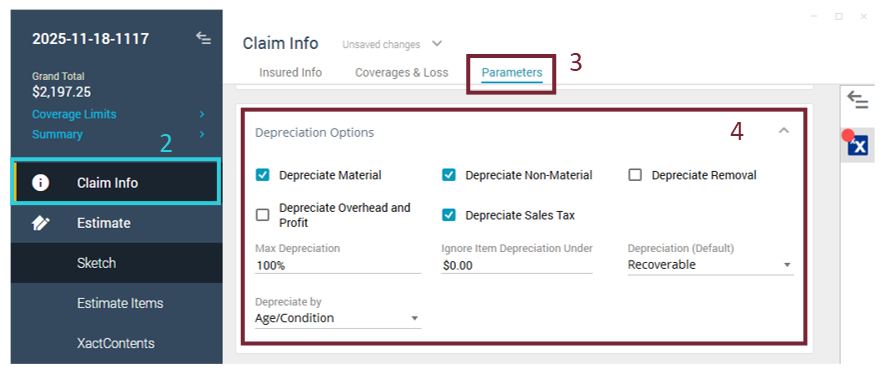
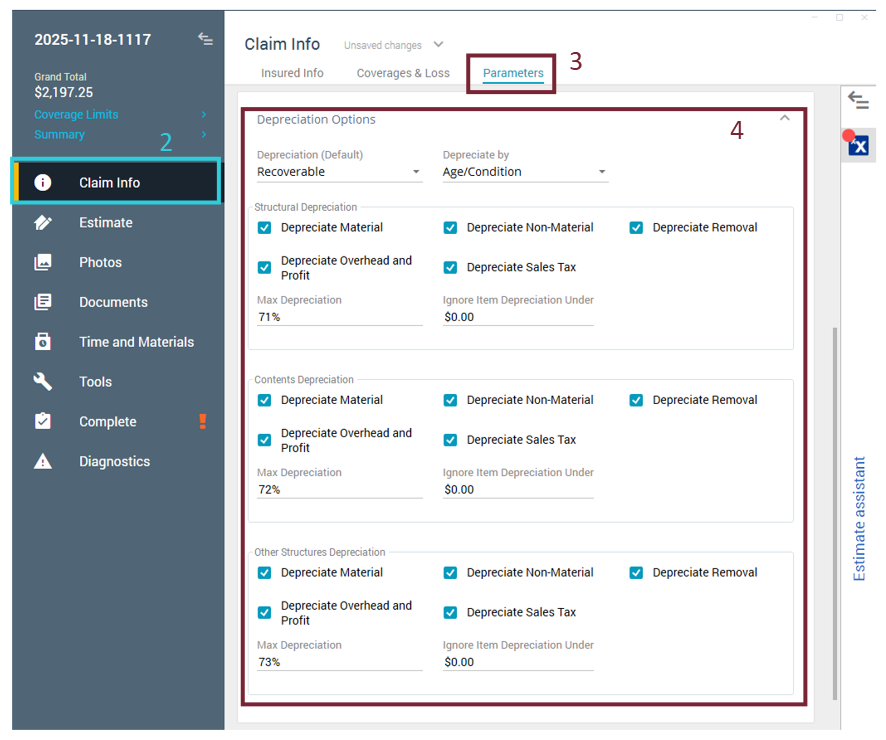
- Scroll to the Depreciation Options section. This section appears differently depending on whether your instance has Depreciation by Coverage Type activated for the state in which the project address is listed.
- Make your selections according to your needs:
- Depreciate material: This allows depreciation on physical items such as cabinets and carpets.
- Depreciate non-material: This allows depreciation on non-material costs such as labor and equipment.
- Depreciate removal: This allows depreciation on costs related to removing components; this includes tearing out flooring or drywall, etc.
- Depreciate overhead and profit: This allows depreciation on overhead and profit.
- Depreciate sales tax: This allows depreciation on sales tax.
Generalized depreciation
Coverage-specific depreciation
Line item
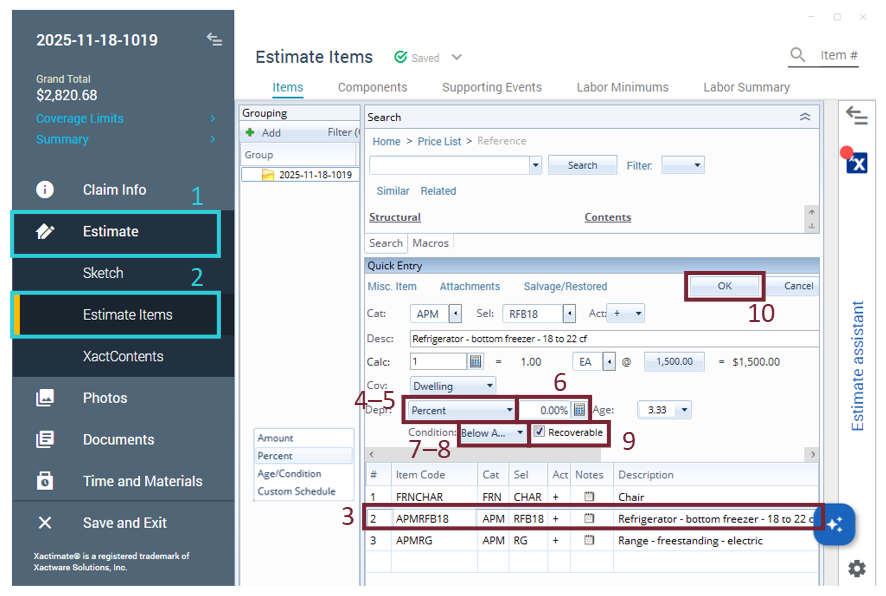
You can add or modify depreciation for individual line items through the Quick Entry panel by using the following steps:
- Within the project, in the left navigation menu, select Estimate.
- Select the Estimate Items option.
- Select the item to be depreciated.
- Select the Depr field to open the drop-down menu.
- Select the desired depreciation option.
- Amount: Depreciation is a flat amount.
- Percent: Depreciation is a percentage of the ACV.
- Age/Condition: Depreciation is calculated based on the age of the item in years.
- Custom Schedule: Depreciation is determined based on a custom option.
- Enter the dollar amount, percentage, age, or other factor by which the item is depreciated.
- Select the Condition drop-down menu.
- Select the correct option.
- Select the Recoverable checkbox if the item has recoverable depreciation; otherwise, do not select it.
- Select OK to apply the depreciation.