Depreciation in Xactimate mobile
 Updated
by
Heather Jones
Updated
by
Heather Jones
Depreciation is the difference between the actual cash value (ACV) of an item and the cost to repair or replace it. Depreciation adjusts the value of physical assets based on item category, age, condition, and usage. You can modify aspects of deprecation for an individual line item, a project, a profile, or an instance.
Instance
See Set depreciation defaults in Instances in Xactimate Admin for details on modifying depreciation at the instance level.
Profile
See Set depreciation defaults in Profiles in Xactimate Admin for details on modifying depreciation defaults at the profile level via Xactimate Admin.
See Depreciation in Xactimate desktop for details on modifying depreciation defaults at the profile level via Xactimate desktop.
Project
To modify the depreciation defaults in a specific project, complete the following:
- Within a project, in the navigation menu, select More.
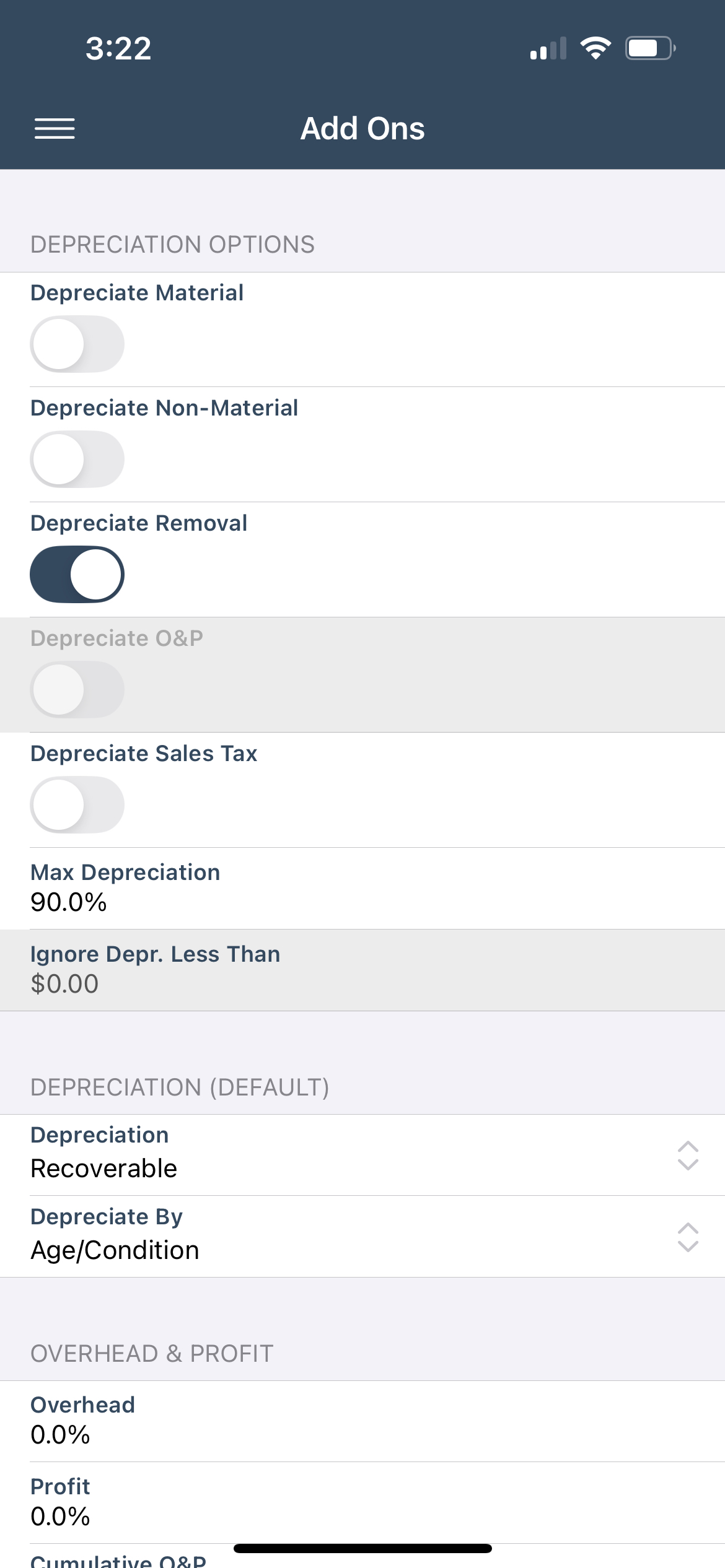
- Select the Add Ons option.
- Make your selections according to your needs and availability:
- Depreciate Material: This allows depreciation on physical items such as cabinets and carpets.
- Depreciate Non-Material: This allows depreciation on non-material costs such as labor and equipment.
- Depreciate Removal: This allows depreciation on costs related to removing components; this includes tearing out flooring or drywall, etc.
- Depreciate O&P: This allows depreciation on overhead and profit.
- Depreciate Sales Tax: This allows depreciation on sales tax.
- Max Depreciation: This sets the maximum percentage by which an item can be depreciated.
- Ignore Depr. Less Than: This removes an item’s depreciation if it is less than the proscribed amount.
- Depreciation (Default): This sets the default depreciation type and calculation based on your selections.
- Depreciation: This sets the default deprecation to Recoverable or Non-Recoverable.
- Recoverable: Often, an initial payment covers the ACV, and a second payment (the recoverable depreciation) covers the cost of full replacement. In other words, when depreciation is recoverable, insurance covers the depreciation of the item(s).
- Non-recoverable: Policies with non-recoverable depreciation do not cover the cost of full replacement of items, only the ACV of the items.
- Depreciate by: This determines how the depreciation is calculated.
- Amt: Depreciation is a flat amount.
- %: Depreciation is a percentage of the ACV.
- Age/Condition: Depreciation is calculated based on the age of the item in years.
Line item
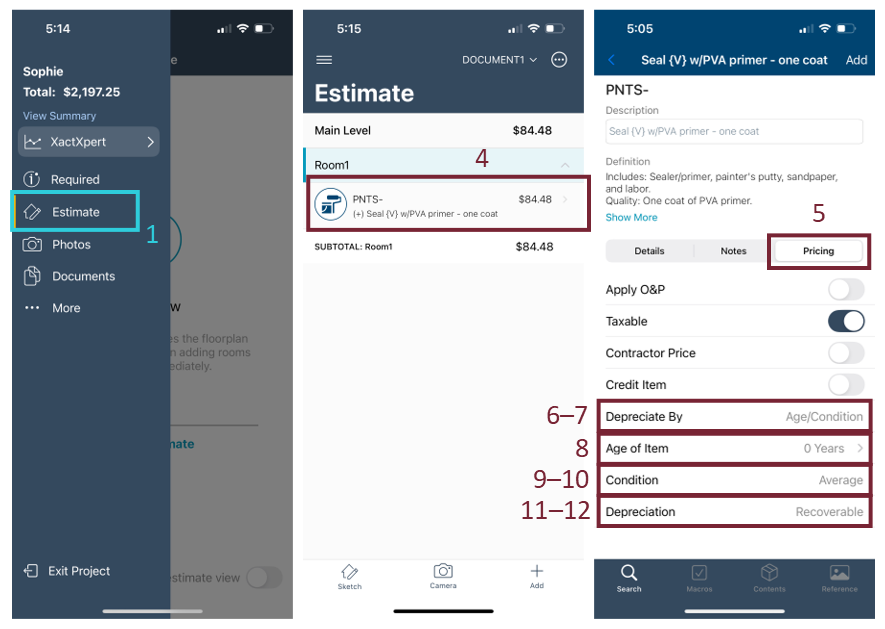
- Within the project in the navigation menu, select Estimate.
- Swipe left on the Sketch Start Estimate screen to reach the List View screen.
- Select Start Estimate.
- Select the line item to depreciate.
- Select Pricing.
- Select Depreciate By.
- Select the desired depreciation option.
- Amount: Depreciation is a flat amount.
- Percent: Depreciation is a percentage of the ACV.
- Age/Condition: Depreciation is calculated based on the age of the item in years.
- Enter the percent, age, or amount for depreciation in the field that appears below Depreciate by.
- Select Condition.
- Select the correct option.
- Select Depreciation.
- Select Recoverable if the item has recoverable depreciation; otherwise, select Non-Recoverable.