Capture images in Xactimate mobile
 Updated
by
Heather Jones
Updated
by
Heather Jones
When adding images and videos to Xactimate, you can either import an image on your camera roll or capture a new one from within Xactimate.
Capture photos and videos from within Xactimate
Although you can capture photos and videos in the same way, for these instructions, we are assuming that you are capturing a photo. To change to capturing video, swipe the screen before Step 6 to switch to video mode.
Photo capture
- Within a project, open the project menu by selecting the three parallel lines in the upper left side of your screen.
- Select Photos.
- (Optional) Select the folder into which you want the photos added. If you do not select a folder, the photo is added to the Unassigned folder (and appears in the All Photos folder).
- Select the camera icon.
- Select Camera.
- Aim your device so the screen shows what you want to capture. You can zoom in or out by either pinching or spreading your fingers on the screen or touching the zoom indicator above the capture button and then dragging your finger to move the zoom wheel.
- Select the white round capture button to capture the image.
- Select Done.
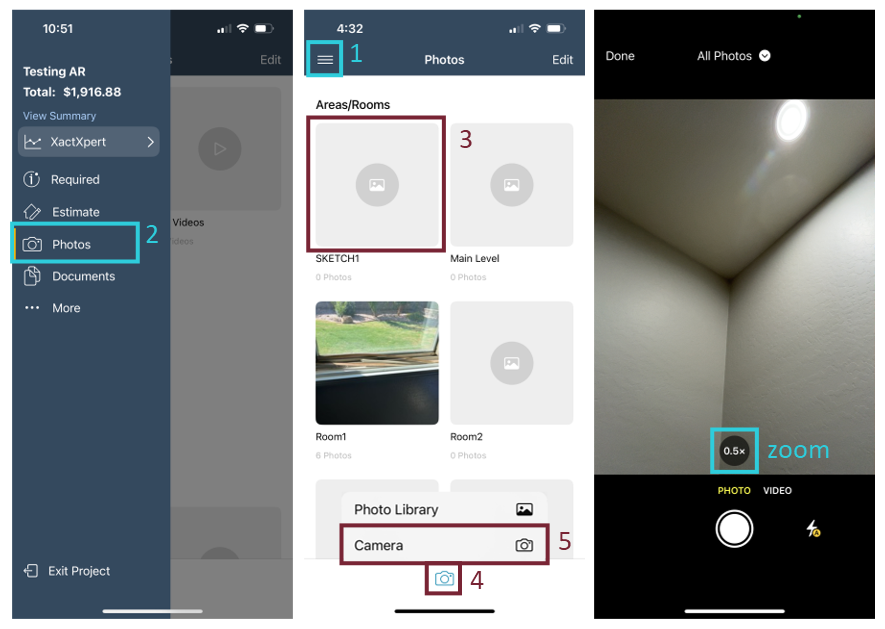
Photo library
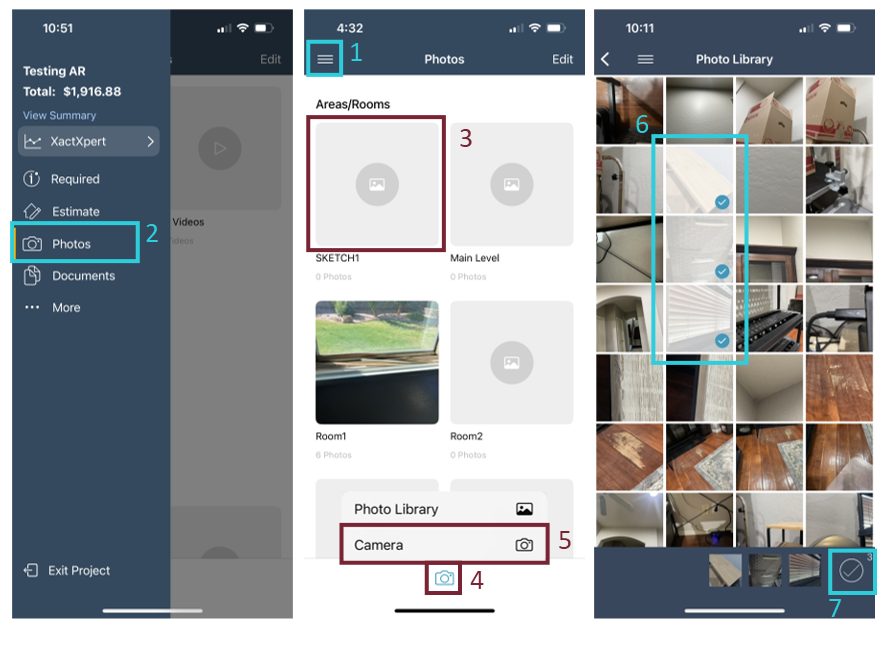
- Within a project, open the project menu by selecting the three parallel lines in the upper left side of your screen.
- Select Photos.
- (Optional) Select the folder into which you want the photos added. If you do not select a folder, the photo is added to the Unassigned folder (and appears in the All Photos folder).
- Select the camera icon.
- Select Photo Library.
- Select image(s) to import.
- Select the checkmark icon.
How to use Camera Control
Enable Camera Control
Before you can use Camera Control for exposure, depth, zoom, switching cameras, styles, and tone (when used in Xactimate, you can only use exposure and zoom), you may need to enable it in your phone settings.
To enable these Camera Control settings, complete the following:
- Open your iPhone settings.
- Select Camera.
- Select Camera Control.
- Select Camera Adjustments (under Controls).
Use Camera Control
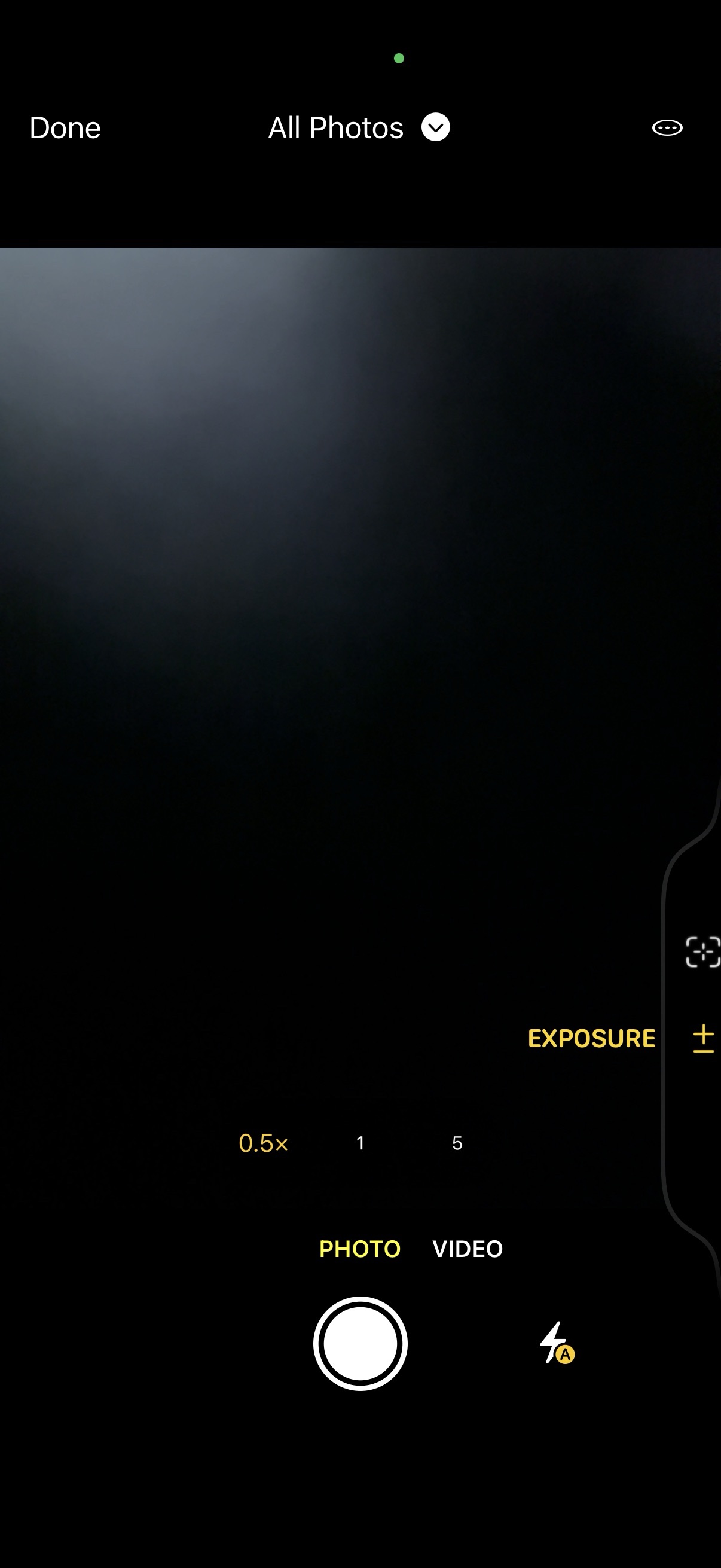
You can use Camera Control to modify zoom and exposure while taking photos from within Xactimate. See Photo capture for instructions on opening the camera from within Xactimate.
To access the zoom and exposure sliders while using the camera, lightly press the Camera Control on the side of the phone. This opens whichever option was last modified.
For exposure and zoom, you can adjust the slider by either sliding your finger along the Camera Control on the side of the phone or swiping the slider on the screen up and down.
You can switch between the zoom and exposure sliders by lightly double-pressing the Camera Control and choosing the appropriate option from the slider that appears.