Capture images in Xactimate mobile
 Updated
by
Heather Jones
Updated
by
Heather Jones
Xactimate mobile for Android will be discontinued and no longer available or supported in Q2 2027, with limited functionality beginning in January 2027.
When adding images and videos to Xactimate, you can either import an image on your camera roll or capture a new one from within Xactimate.
Capture photos and videos from within Xactimate
Although you can capture photos and videos in the same way, for these instructions, we are assuming that you are capturing a photo. To change to capturing video, swipe the screen before Step 6 to switch to video mode.
Note: Xactimate cannot accept videos that exceed two minutes.
Photo capture
- Within a project, open the project menu by selecting the three parallel lines in the upper left side of your screen.
- Select Photos.
- (Optional) Select the folder into which you want the photos added. If you do not select a folder, the photo is added to the Unassigned folder (and appears in the All Photos folder).
- Select the camera icon.
- Select Camera.
Note: If a prompt appears asking for permission to access the camera. Select OK to continue or Don’t Allow to go back.
- Aim your device so the screen shows what you want to capture. You can zoom in or out by either pinching or spreading your fingers on the screen or touching the zoom indicator above the capture button and then dragging your finger to move the zoom wheel.
- Select the white round capture button to capture the image.
- Select Done.
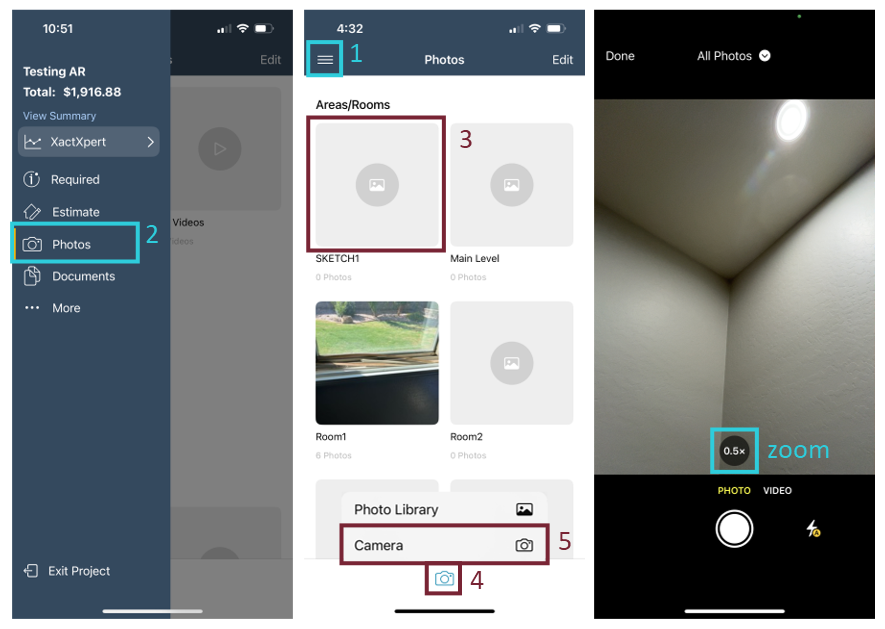
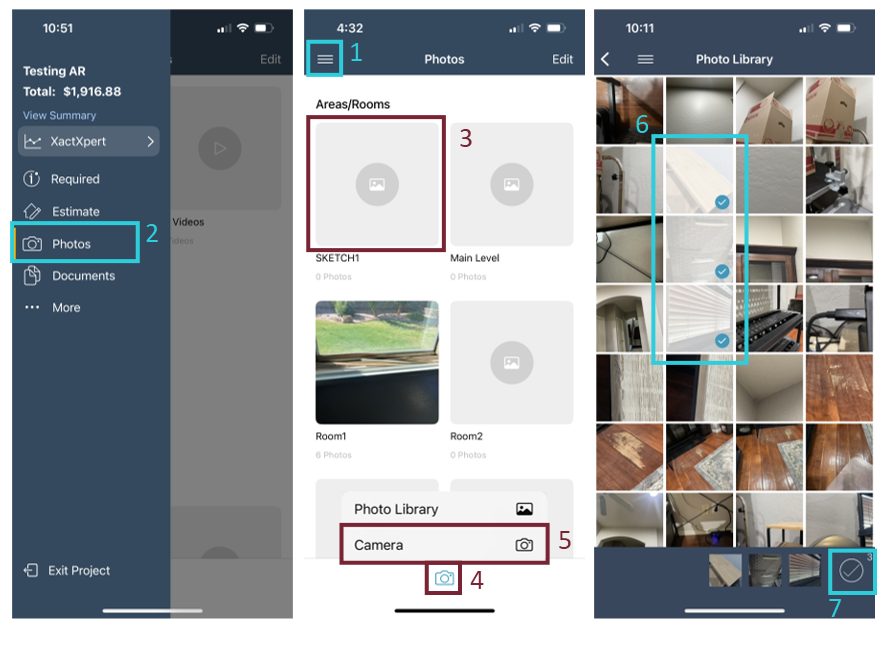
Photo library
- Within a project, open the project menu by selecting the three parallel lines in the upper left side of your screen.
- Select Photos.
- (Optional) Select the folder into which you want the photos added. If you do not select a folder, the photo is added to the Unassigned folder (and appears in the All Photos folder).
- Select the camera icon.
- Select Photo Library.
Note: If a prompt appears asking for permission to access, select OK to continue or Don’t Allow to go back.
- Select image(s) to import.
- Select the checkmark icon.